Every feature in GanttBoard for Jira

Eight headline capabilities, all built on Atlassian Forge. No external servers, no sync engine, no proprietary database. Just your Jira issues, visualized properly.

Native Forge app

GanttBoard runs entirely inside Atlassian Cloud. No external servers, no data leaving your tenant, no third-party analytics, no telemetry. It uses only your Jira permissions (read:jira-work, write:jira-work, read:jira-user) and passes Atlassian's security review as a "Runs on Atlassian" app.

Most competitors (BigGantt, WBS, Structure.Gantt) are Connect apps that host your data on third-party infrastructure. GanttBoard does not.
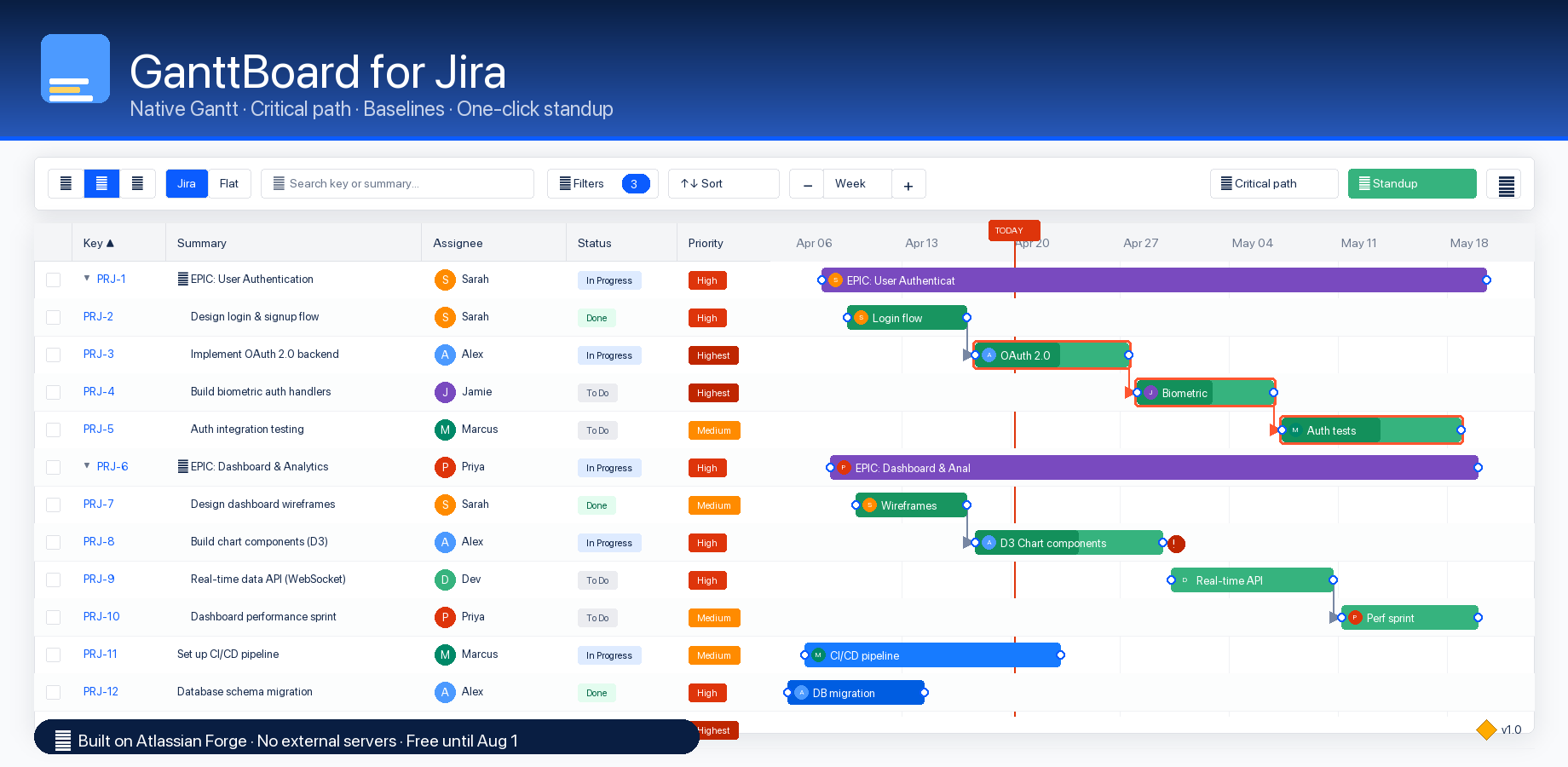
GanttBoard split view inside a Jira project

Drag-to-create dependencies

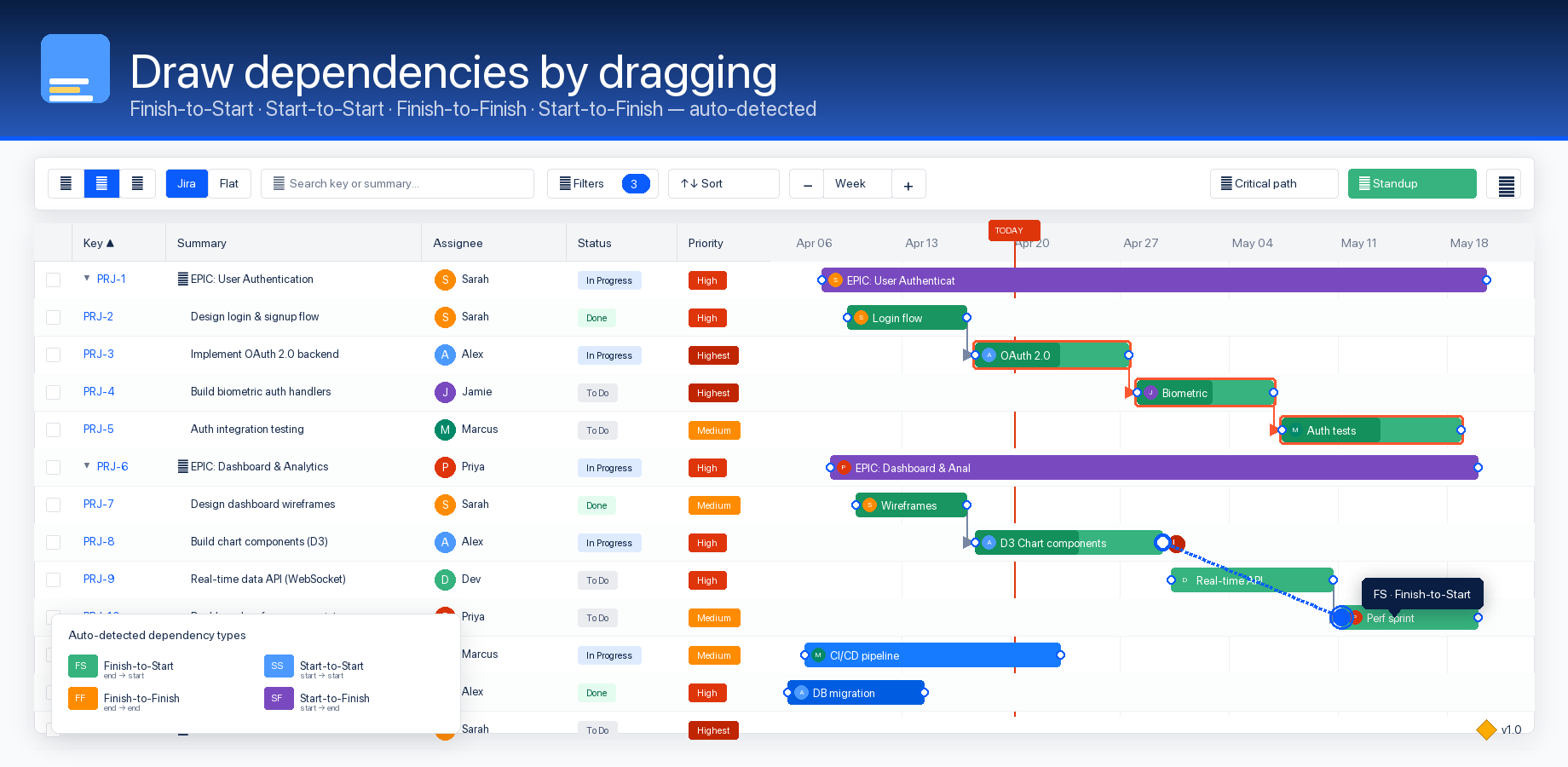
Every bar has a small dot at its start and end. Drag from one dot to another bar's dot and GanttBoard auto-detects the dependency type:

  • end → start = Finish-to-Start (FS)
  • start → start = Start-to-Start (SS)
  • end → end = Finish-to-Finish (FF)
  • start → end = Start-to-Finish (SF)

The Dependency dialog opens with the right type pre-selected — confirm or tweak the lag. Right-click any bar for a menu-driven "Link to..." mode if you prefer.

Dragging between two bar dots to create a dependency

One-click Standup mode

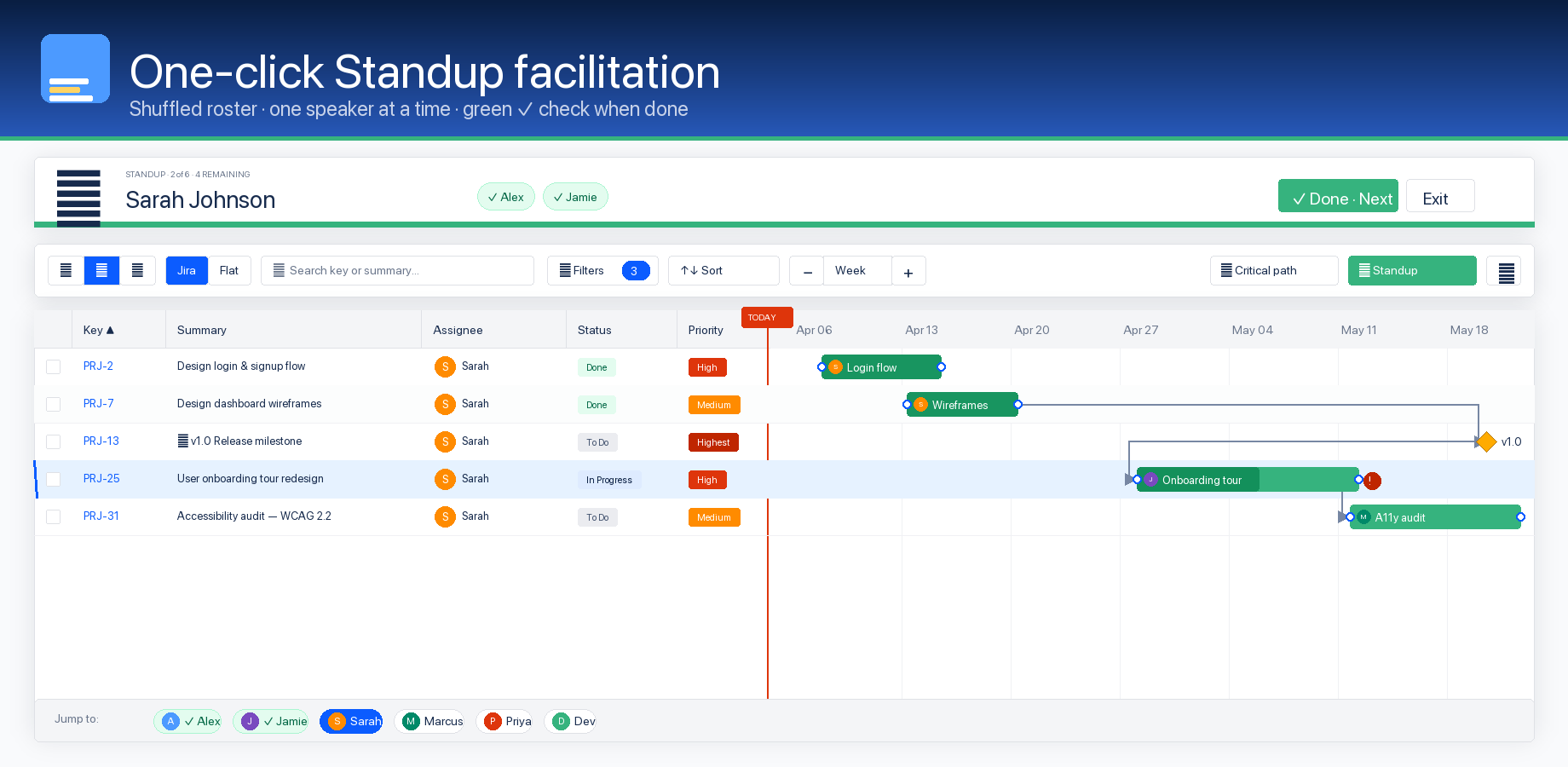
Click one button and GanttBoard turns your Gantt into a facilitated standup tool. It collects every assignee, shuffles them, and walks the team through one speaker at a time — showing only their rows, auto-zooming to Day granularity, and panning to TODAY.

Green checkmarks appear as each speaker finishes. A bottom people bar lets you jump to anyone out of order. Overdue items are highlighted; completed work is hidden for the ceremony.

Standup mode walking through one team member at a time

Active Sprint view

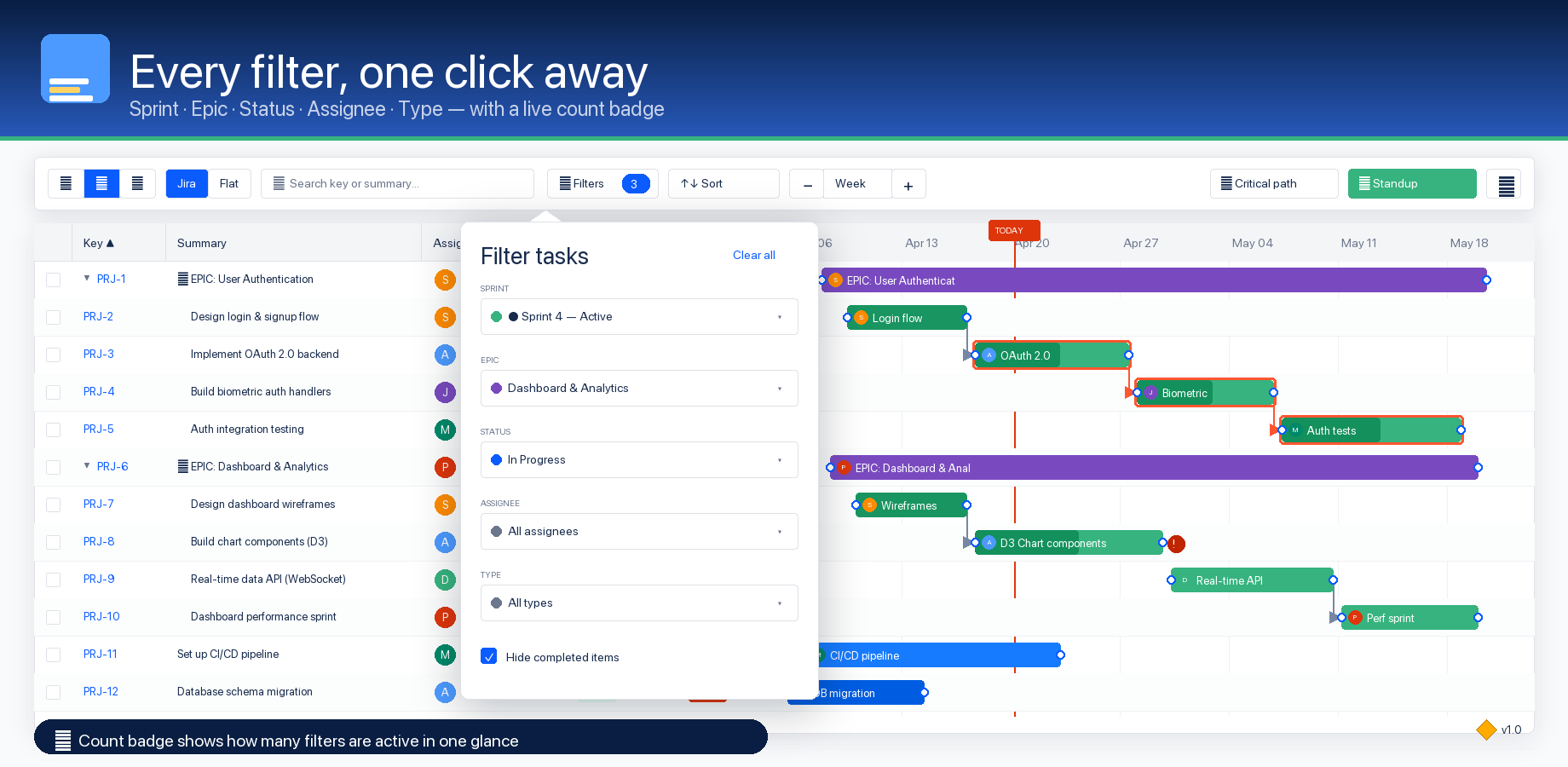
One click filters the whole board down to whatever sprint is currently running — no JQL to write, no filter config to remember. It just works because GanttBoard reads your sprint data directly from Jira.

Combine it with the Filters popover to slice further by Epic, Status, Assignee, or Type. A live count badge on the Filters button shows how many are active.

Filters popover with active filters and count badge

Inline status + assignee edit

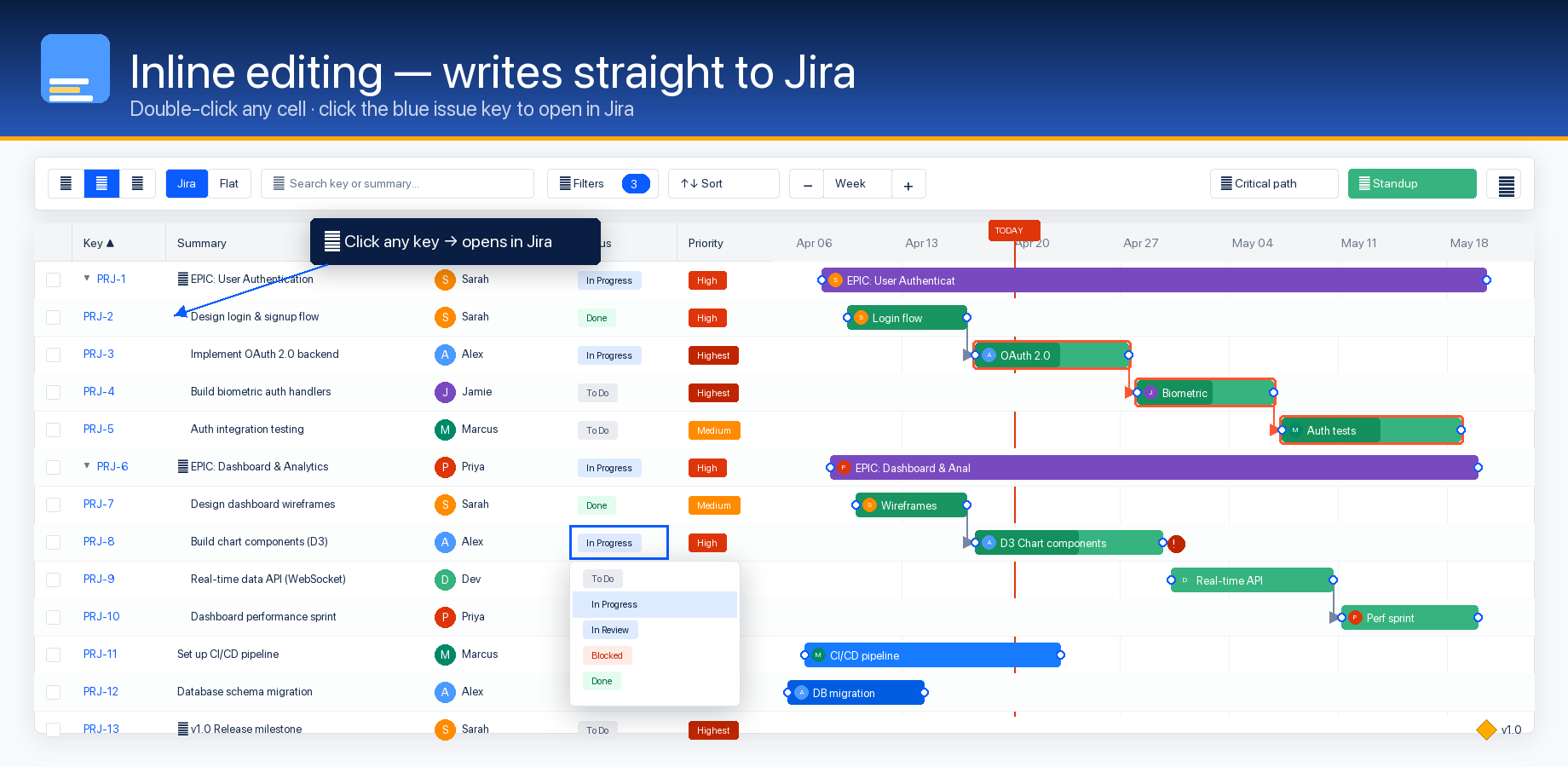
Double-click a Status cell to see a dropdown with your workflow statuses — picking one transitions the Jira issue. Double-click an Assignee cell to reassign. Drag a bar to write the new due date straight back to Jira. Every edit persists in real time — your Jira issues remain the source of truth.

Click any blue issue key (or double-click any bar) to open the issue in Jira.

Inline status dropdown being edited

Critical path (CPM)

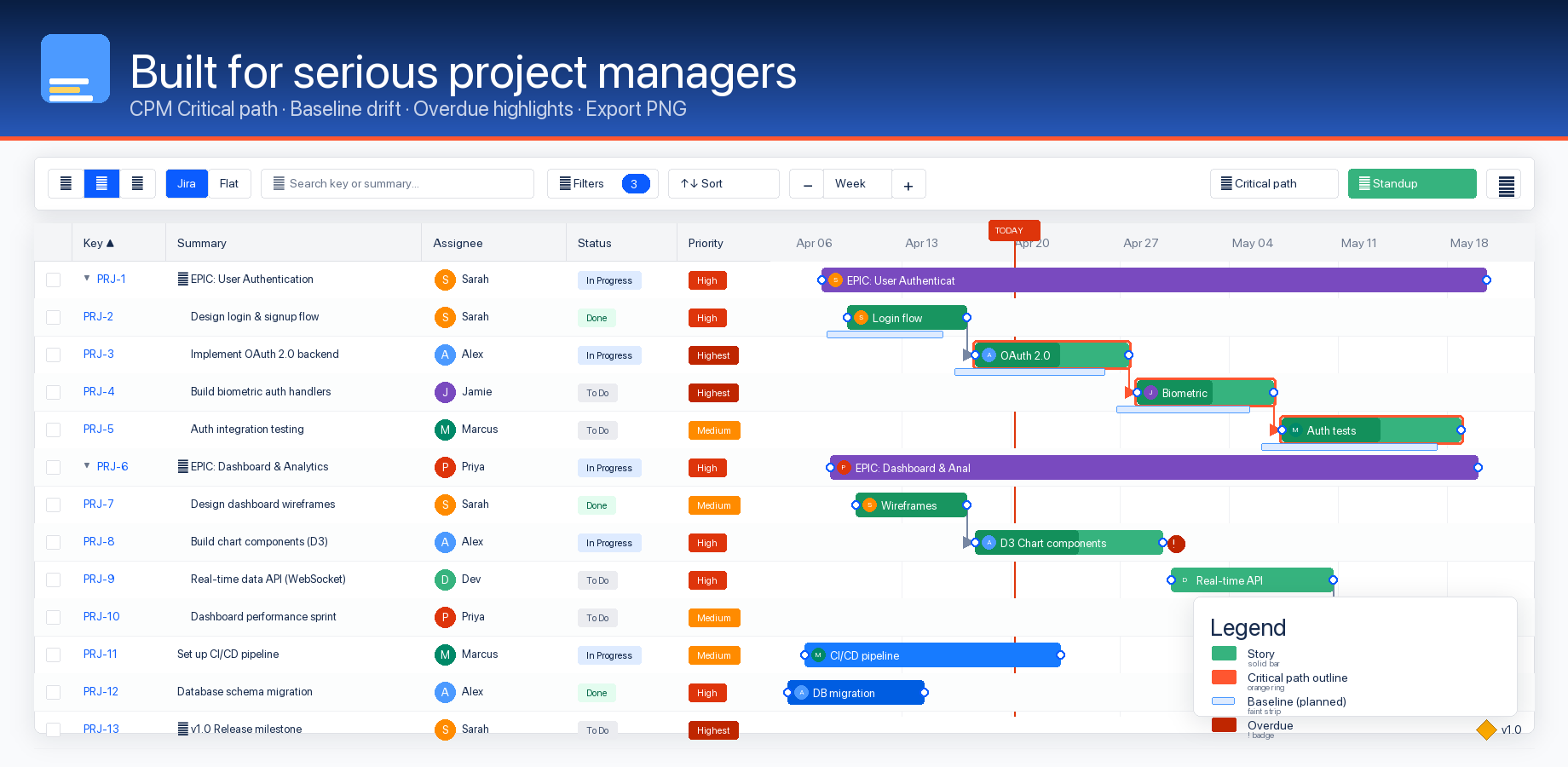
Forward pass, backward pass, float calculation — the classic CPM algorithm, applied automatically to your dependency graph. GanttBoard highlights the longest chain across your project so you can see exactly which tasks drive your deadline.

Toggle critical path on and off from the toolbar. Combined with auto-scheduling, you get a full what-if analysis without leaving Jira.

Critical path highlighted in red across dependent bars

Baselines

Save a snapshot of all task dates at any moment — a baseline. Toggle "Show baseline" later to see drift: a subtle ghost bar appears under each task showing its original planned dates, so you can answer "how far off plan are we?" at a glance.

Multiple baselines are supported. The newest one auto-selects after saving, but you can compare against any previous snapshot.

Baseline ghost bars showing drift below live bars

Click key → open in Jira

Single-click the blue issue key on any row to open that issue in Jira in a new tab. Double-click a bar does the same. Your Gantt and your Jira issue view stay connected — no context switching, no copy-pasting issue keys.

The deep-link "Open in GanttBoard" panel button is temporarily hidden in v3.15.1 while we complete cross-project-type navigation testing; it will return in a future release. See the changelog.

Clicking an issue key to open it in Jira

Everything above, free through August 1, 2026

Install from the Atlassian Marketplace, open any Scrum or Kanban project, click the GanttBoard tab. That's it.

Install GanttBoard free →